
Bulk Invoice Generator: Create Multiple Invoices from Excel or CSV
The work is finished. The invoices are still waiting.
Your client names, services, and amounts are already in a spreadsheet. But turning that list into invoices means opening a template, replacing the details, saving a PDF, and starting again for the next client. The more customers you bill, the longer that last step takes.
With LinkoPDF, you can connect that spreadsheet to one invoice layout and generate the whole batch together.
On this page
When manual invoicing slows you down
For an occasional invoice, the individual invoice editor may be enough. The friction appears when the same task returns every week or month: copy a file, change a customer, update an amount, and check that nothing from the previous invoice remains.
Repeated editing also spreads your billing information across separate documents. If an approved rate changes, you need to find every affected file. Keeping the variable details in a spreadsheet gives you one place to review them before generating the PDFs.
What a bulk invoice generator does
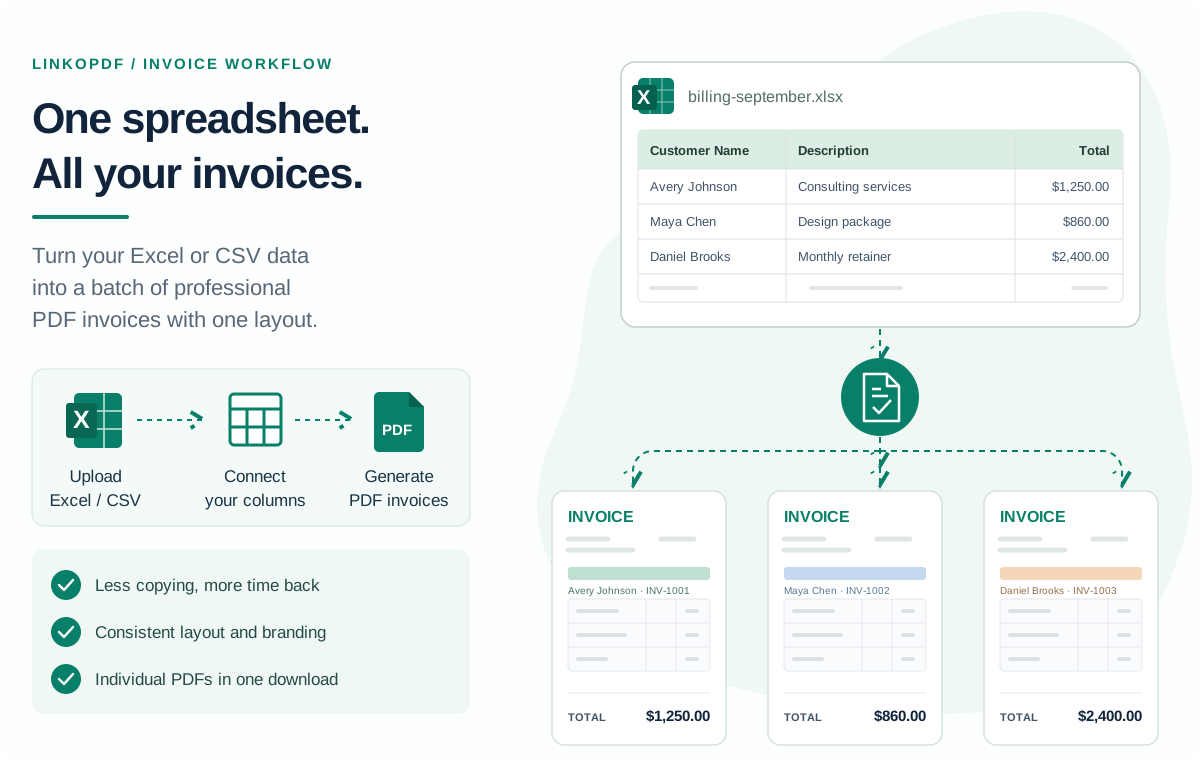
A bulk invoice generator combines a reusable invoice template with a table of billing data. You decide where the customer name, invoice number, date, description, and amount belong. The generator fills those positions with the values for each invoice.
In LinkoPDF, you can use the starter invoice, build your own layout, or import a PDF as the design. Your logo and payment instructions stay in the template; the linked fields change with the spreadsheet rows.
Batch PDF export produces individual invoices in a ZIP. The Single PDF option combines them into one document for printing or internal review.
How it works
- Prepare the data. Put column headers in the first row of your Excel or CSV file. Include the details you want to print on each invoice.
- Open the builder and import your file. Start in the LinkoPDF editor with the starter invoice or your own template.
- Connect columns to fields. Place the customer, invoice number, date, description, and amount on the layout. Keep reusable text and branding in the design.
- Generate a small batch and inspect the output. Check a long customer name, an unusual amount, and an invoice with several items before exporting all records.
- Download your PDFs. Choose individual PDFs in a ZIP or a combined PDF, then deliver the appropriate invoice to each customer.
Start free with one batch of up to 10 documents per day. The daily allowance resets at 00:00 UTC. See plans and limits for larger batches.
How Excel and CSV fit into the workflow
LinkoPDF accepts XLSX, XLS, and CSV files. Excel is useful when you maintain billing data and calculations in a workbook. CSV is useful when the data comes from an export, such as a time tracker or another business tool.
For a simple batch, use one row per invoice. For multiple services on the same invoice, use one row per line item, repeat the invoice number, and select that column for grouping. The number of invoices is then the number of groups, rather than the number of rows.
Working in Google Sheets? Download your billing sheet as an Excel or CSV file, then follow the Google Sheets invoice workflow.
What your spreadsheet should look like
Use descriptive headers and keep the same type of information in each column. Here are three records from the LinkoPDF sample file; the download also includes dates, addresses, and payment notes.
| Customer Name | Invoice # | Description | Total |
|---|---|---|---|
| Avery Johnson | INV-1001 | Consulting services | $1,250.00 |
| Maya Chen | INV-1002 | Design package | $860.00 |
| Daniel Brooks | INV-1003 | Monthly retainer | $2,400.00 |
↓ Download Excel sample↓ Download CSV sample↓ Download line-item sample
Your own headers can be different. What matters is connecting each column to the intended field and keeping that structure consistent when you reuse the template.
Who uses bulk invoice generation?
- Freelancers with several clients and a familiar set of services can prepare one billing list for the month.
- Small service businesses can reuse their invoice layout for maintenance visits, support work, or recurring customer accounts.
- Agencies can combine approved retainers, project fees, and additional hours into itemized client invoices.
- Consultants can turn approved work records into consistently formatted documents without redesigning each invoice.
The common requirement is a structured source file and a layout that works across the batch.
Keep errors out of your invoice batch
Reusing a template reduces repeated typing, but a mistake in the source can still reach every generated document. Review the data before you export.
- Confirm that invoice numbers identify the intended invoices or groups.
- Check customer details, issue dates, service periods, and payment instructions.
- Compare approved totals with the values you will print, reviewing each currency separately.
- Inspect the generated PDFs for long text, missing values, and item tables that need more space.
- Compare the downloaded document count with the expected number of invoices.
Make corrections in the spreadsheet or template and regenerate the affected invoices. That keeps the source and the final documents aligned.
Individual invoices vs. a bulk workflow
| Task | Individual invoices | Bulk generation |
|---|---|---|
| Enter details | Edit each document separately. | Prepare the records in one spreadsheet. |
| Apply branding | Maintain a consistent design across copies. | Use one template for the batch. |
| Correct a value | Find and update the affected files. | Correct the source and regenerate. |
| Export | Save each invoice as a PDF. | Generate PDFs together and download a ZIP. |
| Review | Check every manually edited document. | Validate the source, grouping, and generated output. |
Prepare your CSV or Excel file
Keep the import simple: a header row followed by billing records. Remove report titles, blank separator rows, and summary rows that should not become invoices. In Excel, check calculated amounts before saving the file.
For CSV, use UTF-8 to preserve names and accented characters. Fields containing commas need proper CSV quoting; exporting from your spreadsheet app handles this for you. Store identifiers carefully if they include leading zeros.
For examples of both separate and grouped invoices, see the CSV formatting guide. If values arrive in the wrong columns, the import troubleshooting guide covers common causes.
Invoicing for service businesses and agencies
A client may need one invoice covering a monthly retainer, extra design work, and support hours. Put those services on separate rows with the same invoice number, then group them in LinkoPDF to create a single itemized invoice.
Use a different invoice number when work should be billed separately, even if the client is the same. Grouping by customer alone can unintentionally combine unrelated projects or billing periods.
The agency invoicing guide explains how to organize service lines and check the finished batch.
Build a repeatable billing routine
Keep a stable template and prepare a fresh set of approved records for each billing cycle. Update invoice numbers, dates, services, and totals; then import, review, generate, and download.
Track delivery separately from generation. A downloaded PDF has not automatically been sent to a client. LinkoPDF does not schedule recurring invoices, send emails, collect payments, or track balances for you.
Archive the source file with the final PDFs and record when each invoice was sent. Use the monthly invoice checklist to repeat the same checks next time.
When is bulk invoicing worth it?
It is a good fit when you already hold the data in a spreadsheet, your invoices share a layout, and you repeatedly copy the same document. You do not need a large client list to benefit from keeping data and design separate.
Start with a small, representative set of invoices. Include a long description or several service lines so you can confirm that the layout suits the work you actually bill. If your main need is payment collection or automatic reminders, plan to handle those steps in your billing or accounting system.
Create your first invoice batch
Try the sample spreadsheet, connect its fields to the starter invoice, and check your first set of PDFs. Once the layout works, use it with your own billing data.
Generate invoices with LinkoPDFFree: one batch of up to 10 documents per day. No credit card required. Compare plans.
Frequently asked questions
What is a bulk invoice generator?
A bulk invoice generator fills one invoice template with records from a spreadsheet to create multiple invoice PDFs together. LinkoPDF connects your Excel or CSV columns to fields in a reusable layout.
Can I generate invoices from Excel or CSV files?
Yes. LinkoPDF accepts XLSX, XLS, and CSV files. Include headers in the first row, import the file, and connect the columns to the invoice fields.
How do I create multiple invoices from an Excel spreadsheet?
Prepare your billing records, upload the workbook to LinkoPDF, and connect the columns to a starter invoice or your own template. Generate a small batch to check the output, then export the PDFs as a ZIP or a combined document.
Can one invoice contain several spreadsheet rows?
Yes. Use a row for each line item, repeat the invoice number on related rows, and select that column for grouping. LinkoPDF then creates one invoice per group.
Can I generate bulk invoices for free?
The free plan includes one batch of up to 10 documents per day, resetting at 00:00 UTC. Pro supports larger batches and unlimited export runs.
Can I download each invoice as a separate PDF?
Yes. Batch PDF export creates a ZIP containing individual invoice PDFs. The Single PDF option combines the invoices into one document for printing or internal review.
Does LinkoPDF automatically send recurring invoices?
No. You can reuse a template for each billing cycle, but you need to import the updated data and run the export. LinkoPDF does not schedule recurring runs, email invoices, collect payments, or track payment status.
Is bulk invoicing useful for agencies and small businesses?
It can help when several customers share an invoice layout and billing data is already organized in a spreadsheet. Agencies can group service rows by invoice number to include retainers, project fees, and extra hours on one document.